Image Size vs Resolution: Pixels, KB, MB and DPI
Understand the difference between pixel dimensions, file size, megapixels, aspect ratio and print resolution.
“Image size” is ambiguous. A website may mean the number of bytes, a designer may mean width and height, and a printer may mean physical dimensions at a particular DPI. Before changing a file, identify which measurement the destination actually limits.
Using the wrong tool can make the file worse: changing quality will not satisfy an exact pixel requirement, changing DPI metadata will not reduce a 10 MB photo, and enlarging dimensions will not restore missing detail.
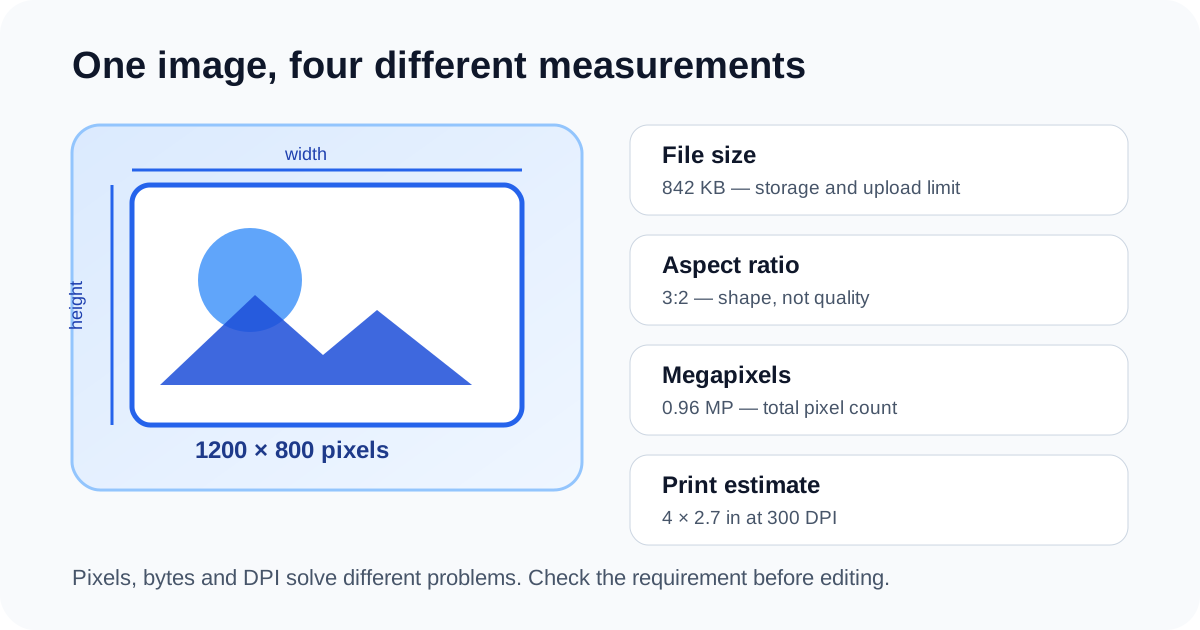
Pixel dimensions describe the digital grid
A 1200 × 800 image contains 960,000 pixels. Width and height determine how much screen detail the file can hold and how large it can display before interpolation becomes visible. Many forms specify a minimum or maximum width and height.
Megapixels are simply total pixels divided by one million. A 4000 × 3000 camera image is 12 megapixels. Megapixels do not reveal sharpness, focus or compression quality; they only describe grid size.
- Width × height = total pixels
- Total pixels ÷ 1,000,000 = megapixels
- Resizing changes the grid; compression changes storage
KB and MB describe storage, not shape
File size depends on format, quality, dimensions, metadata and visual complexity. A smooth studio background compresses more efficiently than grass, hair or camera noise. Two 1200 × 800 images can therefore differ greatly in KB.
For strict upload limits, reduce unnecessary dimensions first, then adjust format and quality. This usually preserves readability better than forcing a full-resolution photo to extremely low quality.
Aspect ratio describes shape
Aspect ratio is the simplified relationship between width and height: 1200 × 800 is 3:2; 800 × 800 is 1:1. Keeping the ratio locked prevents stretching. Cropping changes the composition and can create the exact shape required for a profile photo or banner.
Entering both width and height while the ratio is unlocked can distort faces, circles and text. Crop to the new shape first, then resize to the final pixels.
DPI connects pixels to print size
At 300 DPI, a 3000-pixel-wide image prints about 10 inches wide. At 150 DPI, the same pixels cover about 20 inches but look less detailed at close range. DPI metadata alone does not create pixels.
For screen uploads, pixel dimensions and file size usually matter more than DPI. For print, ask the printer for the required physical size and effective DPI.
Which measurement should you change?
| Requirement says | Change | Tool |
|---|---|---|
| “Maximum 500 KB” | Encoding quality and possibly dimensions | Image Size Reducer |
| “Exactly 600 × 600 px” | Crop to square, then resize | Crop Image + Image Resizer |
| “At least 1200 px wide” | Pixel width | Image Resizer |
| “300 DPI at 4 × 6 inches” | Enough pixels for print | Size Checker + Resizer |
Final checklist
Copy the destination requirement exactly
Check current format, bytes, width and height
Preserve the original file
Make one controlled change at a time
Verify the exported result
Questions people ask
Does a larger file always mean better quality?
No. Inefficient format or metadata can increase bytes without adding useful detail.
Can I change DPI without changing pixels?
Yes, but it usually changes only print instructions, not screen resolution.
Why did a smaller image become a larger file?
The new format or quality setting may store the pixels less efficiently.
This article explains the current DocPixel interface and known trade-offs. Requirements from a receiving institution or software provider take priority.